Based on an earlier post where show how to make a master detail page, today we will add a box where we will be able to modify the aployee data.
It is useful too to know how to make List of Values (combos) with this technology, and see an example of how to export the detail table to Excel.
Example application in HRApplication.zip.
The same way than the last article we will create:
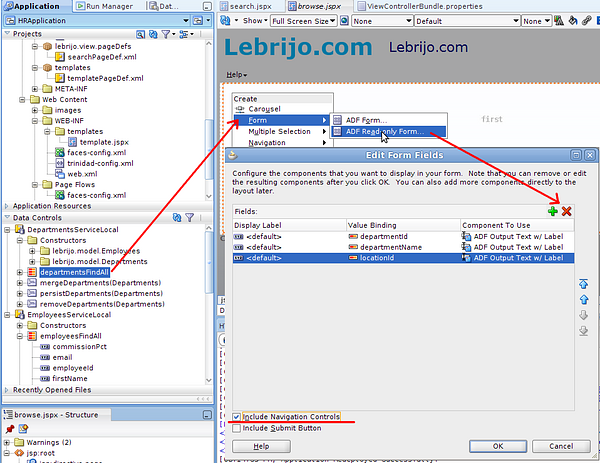
an "ADF Read-only Form" from the departmentsFindAll binding in the top part.
an "ADF table Read-Only" from the departmentsFindAll > employeesList. Which surround with a "Panel Collection" component to see more features of ADF.
With a new Panel Spliter, create a right side box, where we put the edition form.
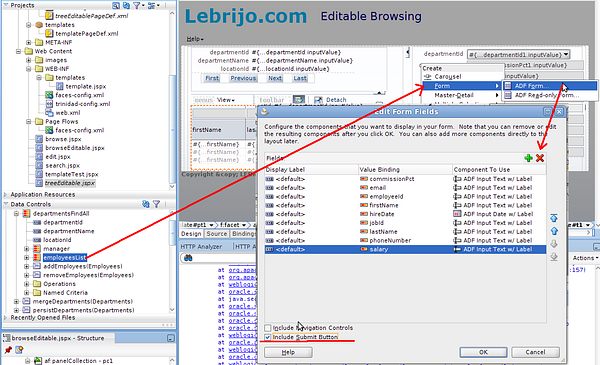
So drop the departmentsFindAll > employeesList, and select the "ADF Form" with Submit button:
create_form.png194 KB
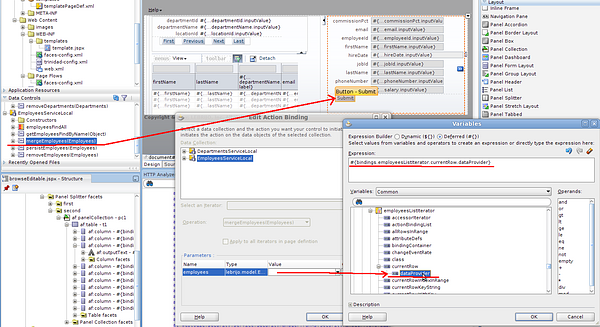
We can meke this form editable dropping the mergeEmployees method to the submit button, and pointing where in the data tree will make the merge:
save_button.png167 KB
Change the text of the button to "Save" it will be more intuitive.
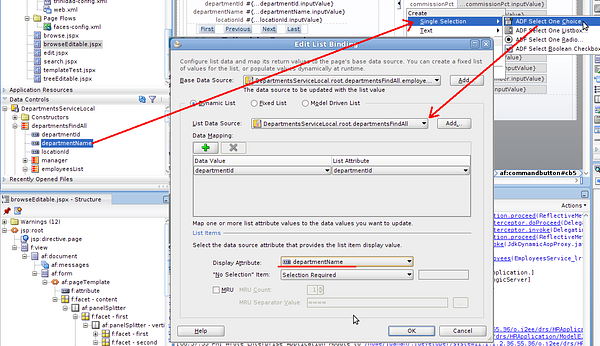
Now we will create the list of values of departments. Drop the control departamentsFindAll > EmployeesList > departments > departmentId over the form, and select the "ADF Select One Choice ...":
create_lov.png178 KB
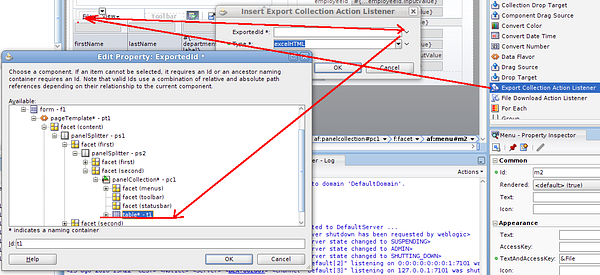
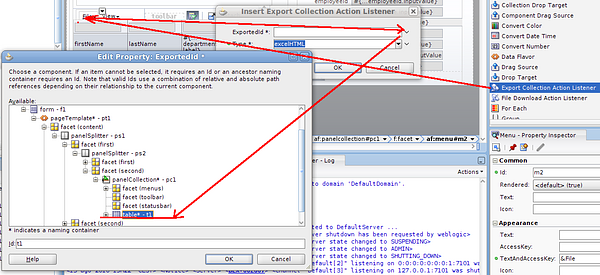
In the "menu" zone of the "Panel collection" we will create a Menu (called File) and a menuItem called "Export to Excel". Where we will drop an "Export Collection Action Listener". Of the only existent type "excelHTML", and for the identifier, the table we want to export:
create_excel.png140 KB
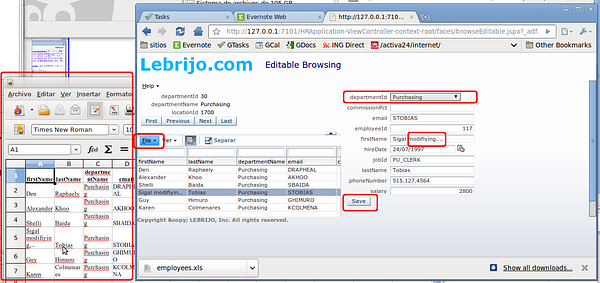
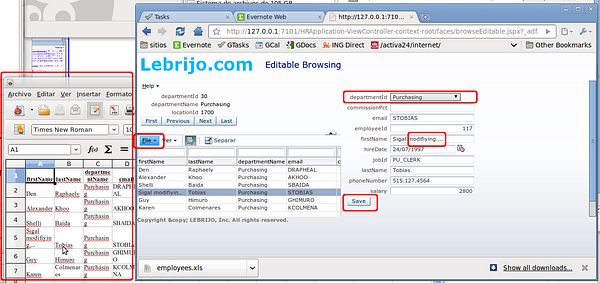
Save, and with right button select "Run" to test the browseEditable.jspx. We can see how:
Basándonos en un artículo anterior en el que mostrábamos como hacer una pantalla maestro detalle, hoy le vamos a añadir una caja donde se mostrará el detalle donde podremos modificar los datos de los empleados.
También es útil saber como se hacen las Listas de Valores con esta tecnología, y veremos un ejemplo de como exportar la tabla detalle a Excel.
Aplicación ejemplo en HRApplication.zip.
De la misma manera que en el artículo anterior crearemos:
un "ADF Read-only Form" a partir del binding departmentsFindAll en la parte superior.
una "ADF table Read-Only" a partir de departmentsFindAll > employeesList. Tabla que rodearemos con un"Panel Collection" para ver más características de ADF.
Con un nuevo Panel Spliter, crearemos un cuadro lateral derecho, donde crearemos el form de edición.
Pues eso, arrastramos la departmentsFindAll > employeesList, y seleccionamos "ADF Form" con Submit button:
create_form.png194 KB
Para que este formulario sea editable arrastramos el método mergeEmployees hacia el botón submit, y diciendole a que altura dl arbol de objetos debe hacer el merge, que esen el employeeList (bindings.employeesListIterator.currentRow.dataProvider):
save_button.png167 KB
Podemos cambiar el texto del botón por el de "Save" para que sea más intuitivo.
Ahora vamos a crear la lista de valores de Departamentos. Arrastramos el control departamentsFindAll > EmployeesList > departments > departmentId sobre el formulario, y seleccionamos para que cree un "ADF Select One Choice ...":
create_lov.png178 KB
En la zona "menu" del "Panel collection" vamos a crear un Menú ( que llamaremos File) y un menuItem que llamaremos "Export to Excel". Sobre el que arrastraremos un "Export Collection Action Listener". En el que el tipo será el único que existe "excelHTML", y para el id tendremos que buscar la tabla que queremos exportar:
create_excel.png140 KB
Guardamos, y con el botón derecho seleccionamos "Run" para probar la pantalla browseEditable.jspx. Veremos como:
En entornos administrativos nos podemos encontrar con la exigencia de un tipo de formulario master/detail. Por ejemplo para navegar los empleados que tienen cierto departamento, o los clientes que adquirieron cada uno de nuestros productos.
Basándonos en la aplicación de Recursos Humanos de Oracle haremos un maestro detalle para navegar por los departamentos de la empresa.
Aplicación ejemplo en HRApplication.zip.
Creamos una New > JSF Page, utilizando el template creado en artículos anteriores.
Desde la paleta de componentes metemos un "Panel Spliter" que hacemos vertical para que la maestra quede encima de latabla detalle.
De los "Data Controls" arrastramos el departmentsfindAll seleccionando "ADF Read-only Form", eliminamos todos los campos excepto los de departamento, e incluimos los botones de navegación:
create_master.png188 KB
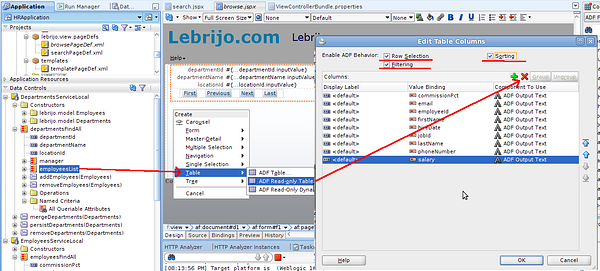
Para crear el detalle seleccionamos de los "Data Controls" del anterior departmentsFindAll > employeesList, arrastrándola a el cuadrante inferior. Seleccionamos todos los campos relevantes al empleado, y filtrado, ordenar y seleccionar:
create_detail.png143 KB
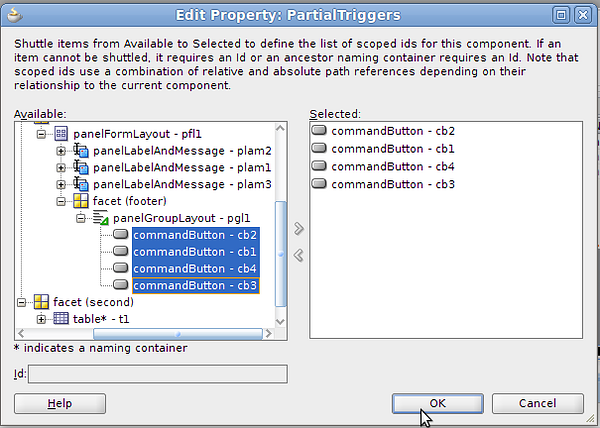
En la tabla-detalle-empleados selecciona de la ventana de propiedades Behaviour > PartialTriggers >Edit, selecciona los cuatro botones de la tabla maestro, para que cambie al tocarlos:
select_buttons.png151 KB
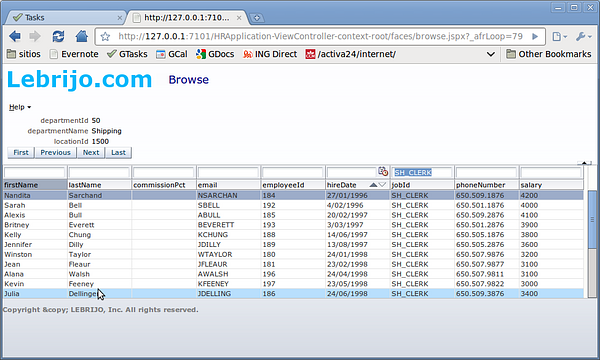
Para probar, Run sobre la página browse:
master_detail.png127 KB
En este vista puedes comprobar la versatilidad de las tablas, puedes:
Mover las columnas de sitio
Ordenar por cualquier columna ascendente o descendente
Filtrar sobre cualquier columna con un string de búsqueda
Características que podrían ser muy interesantes en un entorno administrativo.