Sep 02, 10 by Juan Lebrijo about SoapUI, Web Services, Java, blog
We will create the needed classes to generate a Web Service client from its WSDL.
We will base in the HelloWorld project, and here will add the security. In this project we response with a Hello for the name which sent as argument through the Web Service.
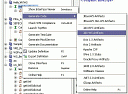
In order to generate the classe we will use SoapUI:
1004.thumbnail.gif6.14 KB
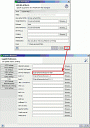
We must to locate in our hard disk the wsimport.bat tool, downloaded with the SUN standard package implementation (of JAX-WS):
1005.thumbnail.gif5.47 KB
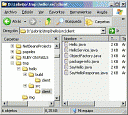
It generates a folder with sources and other with compiled classes:
1006.thumbnail.gif8.12 KB
To write the client helped with this classes is as easy as this:
package client;

import java.net.MalformedURLException;
import java.net.URL;

import javax.xml.namespace.QName;
import javax.xml.ws.BindingProvider;

public class HelloClient {

    public static void main(String[] args) {
        HelloService service = null;
        try {
            // Creamos el servicio con el WSDL
            URL wsdlLocation = new URL("http://localhost:7001/wsc/HelloService?WSDL");
            String targetNamespace="http://services/";
            String name="HelloService";
            service = new HelloService( wsdlLocation, new QName(targetNamespace, name));
            Hello port = service.getHelloPort();
            // Añadimos capacidades de seguridad a la llamada
            BindingProvider provider = (BindingProvider) port;
            provider.getRequestContext().put(BindingProvider.USERNAME_PROPERTY, "user");
            provider.getRequestContext().put(BindingProvider.PASSWORD_PROPERTY, "12345678");
            //Mostramos el resultado
            System.out.println(port.sayHello(args[0]));
        } catch (MalformedURLException e ) {
            e.printStackTrace();
        }
    }
}