Dec 13, 07 by Juan Lebrijo about design, Windows, blog
Aquí os dejo otro para de ideas para personalizar vuestro escritorio: una barra de tareas estilo Dock y un salvapantallas para colaborar en proyectos científicos en los periodos de inactividad del PC.
Barra de tareas
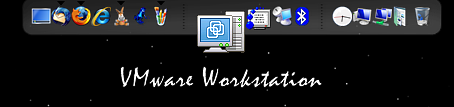
La primera es la barra de herramientas tipo Dock (muelle ó bahía). La barra de inicio típica de Mac:
bar.PNG21.3 KB
La barra es una aplicacioncita que se ejecuta en segundo plano ocupando poca memoria. Tiene muchas posibilidades de personalización.
La aplicación se llama Rocketdock desarrollada por Punk Labs.
Se trata de que en los periodos que esté inactivo nuestro PC (cuando salta el salvapantallas) lo aprovechemos procesando datos para un proyecto científico.
El cliente: En mi PC instalo un programa (cliente BOINC) que recogerá las porciones de datos a analizar. Los analizará. Cuando acabe se conectará al servidor a entregar los resultados y a solicitar una porción nueva a analizar. Todo este trabajo se realiza cuando salte el salvapantallas.
El servidor (en Berkeley): Recoge los datos del telescopio (Arecibo) y los divide en fragmentos para repartirlos entre los clientes que tiene distribuidos. Luego recoge los datos procesados.
Puedes elegir entre varios proyectos, cada uno te da un salvapantallas cuando se estén procesando sus datos.
Yo he elegido el proyecto SETI@home, que proporciona un salvapantallas muy espectacular. Te muestra en 3D la densidad espectral de la señal analizada, y otros análisis gaussianos.
Mediante estos cálculos se busca alguna señal de vida inteligente en el espacio.
Os dejo una imagen del salvapantallas:
[singlepic=5,320,240]
To interact with the user, flash has a basic symbol: the button. It is the same as a classic button in all teh aplications you think, but flash have a distinctive treatment modus.
We are going to see the Text tools too.
Text
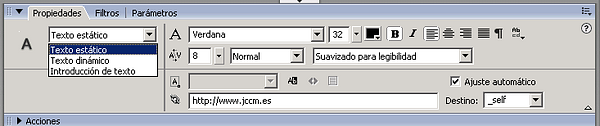
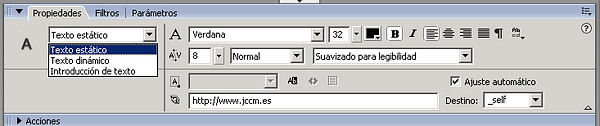
There is a square in the tools menu to make texts. The properties are shown in the palette when you work with texts:
image043.png40.2 KB
Warning: In the palette have the posibility to make a link.
Create buttons
It can be created, with a symbol from a rectangle, for example:
Drag a form, rectangle, to the library
Select the symbol type Button.
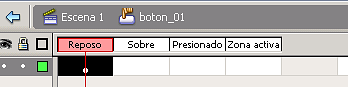
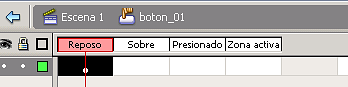
The time axis is different in the buttons:
image045.png2.11 KB
The usual pointer events:
Stand: Draw button.
Over: mouse over
Push: pshing mouse
Active zone: Limit the zone with activation of the pointer in the image.
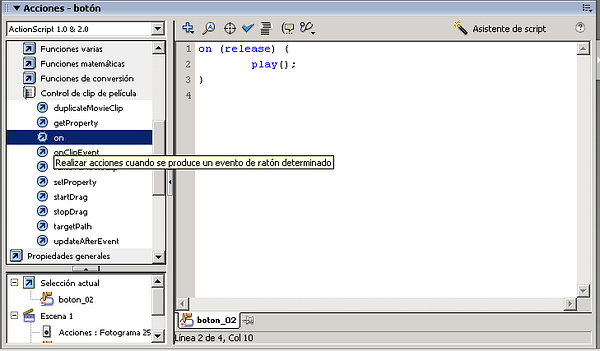
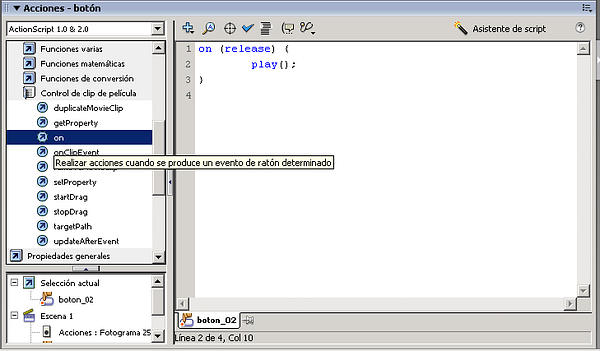
To add an action is staying over the button and marking the action (in actionscript):
image047.png87.2 KB
We can see an example with the las techiques explained (source):
Time axis with buttons
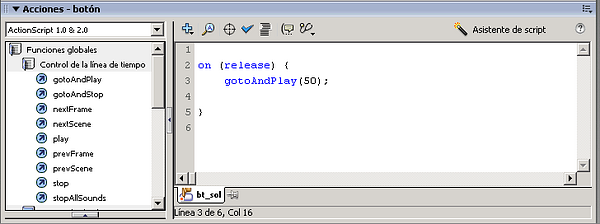
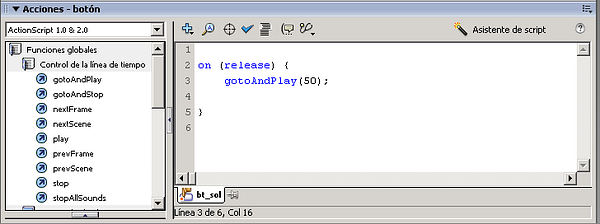
Na vigate from the time axis when you press a button (relase – when you take off the button), you can go to the 50 frame of the figure:
image049.png54.8 KB
An example qe can see in the following Flash article.
Para interactuar con el usuario, flash tiene un símbolo básico que es el botón. La idea es la de un botón clásico como en toda aplicación, pero flash tiene una forma peculiar de tratarlo.
También veremos como son las herramientas de texto.
Texto
Hay un cuadrado en menú de herramientas para hacer textos. Las propiedades que aparecen en la paleta cuando se trabaja con él son:
image043.png40.2 KB
OJO: en la paleta de propiedades hay posibilidad de hacer un link.
Crear botones
Lo podemos crear, creando un símbolo a partir de un rectángulo por ejemplo:
Arrastar una forma, rectángulo, a la biblioteca
Seleccionamos que sea del tipo botón.
La línea de tiempos es diferente en un botón:
image045.png2.11 KB
Los típicos eventos de puntero:
Reposo: boton recien dibujado.
Sobre: ratón encima
Presionado: ratón pulsando
Zona Activa: Delimita la zona que va a activar el puntero en la imagen.
Para añadir acción al botón es poniendote sobre el botón y marcando la acción (en actionscript):
image047.png87.2 KB
Podemos ver un ejemplo de lo contado hasta ahora (fuente):
Eje de tiempos con botones
Navegar por el eje de tiempos cuando presionas un botón (relase – cuando se suelta), se hace llendo al frame 50 en la figura:
image049.png54.8 KB
Un ejemplo de esto lo veremos en un ejemplo del próximo artículo de Flash.