Aug 14, 10 by Juan Lebrijo about Oracle, Database, weblogic, security, blog
In a previous article we saw how to secure a Web Service with basic authentication (this could be used for every page in our application). We did it creating users with Weblogic Default Authenticator.
Today we will create an SQLAuthenticator in Weblogic, then the server will take users and groups from the data base.
First of all we will create a Data Source, where will be our users data base, in Weblogic console. Go to base_domain > Services > JDBC Data Soources > New, and configure the following data:
Name: school
JNDI name: school
DB name: xe
Host: 192.168.0.7
Port: 1521
User/pass: school/school
Select the servers where we will apply this DataSource: AdminServer.
Test the connection as we see in the picture:
create_data_source.thumbnail.png11.6 KB
Now we have to create in the data base the tables where we store users/groups and the relations. For this we have the following SQL script:
CREATE TABLE USERS (
    U_NAME VARCHAR(200) NOT NULL,
    U_PASSWORD VARCHAR(50) NOT NULL,
    U_DESCRIPTION VARCHAR(1000));

ALTER TABLE USERS
   ADD CONSTRAINT PK_USERS
   PRIMARY KEY (U_NAME);

CREATE TABLE GROUPS (
    G_NAME VARCHAR(200) NOT NULL,
    G_DESCRIPTION VARCHAR(1000) NULL);

ALTER TABLE GROUPS
   ADD CONSTRAINT PK_GROUPS
   PRIMARY KEY (G_NAME);

CREATE TABLE GROUPMEMBERS (
    G_NAME VARCHAR(200) NOT NULL,
    G_MEMBER VARCHAR(200) NOT NULL);

ALTER TABLE GROUPMEMBERS
   ADD CONSTRAINT PK_GROUPMEMS
   PRIMARY KEY (
      G_NAME,
      G_MEMBER
   );

ALTER TABLE GROUPMEMBERS
   ADD CONSTRAINT FK1_GROUPMEMBERS
   FOREIGN KEY ( G_NAME )
   REFERENCES GROUPS (G_NAME)
   ON DELETE CASCADE;
We can execute it in the Data Base Eclipse perspective, executing the contextual menu option "Execute All" in SQL Editor:
eclipse_execute_script.thumbnail.png11.3 KB
After in Weblogio console go to base_domain > Security Realms > myrealm > Providers > New. Where we will configure the SQL Autentication provider:
Name and type: SQLAuthenticator
Then, in its properties, in Provider Specific tab, we will configure as follows:
Data Source Name: school
Group MemberShip Searching: limited to 10 to avoid the recursive situations like A owns B, and B owns A.
Plain Text Passwords Enabled: we can test this configuration with no encripted passwords, but not recomend it in production.
weblogic_sqlauthenticator.thumbnail.png12 KB
WARN!!: we have to take care that the authentication sequence in the server requires the DefaultAuthenticator permission. In base_domain > Security Realms > myrealm > Providers > Providers > DefaultAuthenticator, change to:
Control Flag: SUFFICIENT. Then will not be a must the Default authentication (if we mistake this step, we could loose the consola access).
Here we have to reboot (better stop/start in eclipse control) the server to the changes take effect. Now you can execute the example Web Service basic authentication, with a user created with SQL provider.
Aug 12, 10 by Juan Lebrijo about weblogic, JDeveloper, blog
Abrimos JDeveloper con al opción "Default role", para que active todas las características del entorno. A nosotros nos interesan las de JEE Development y las de base de datos.
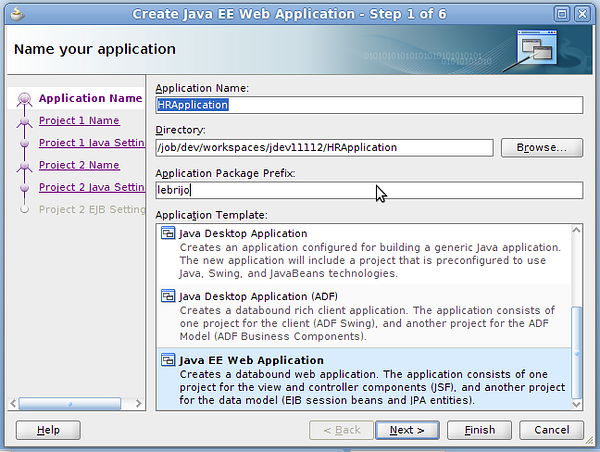
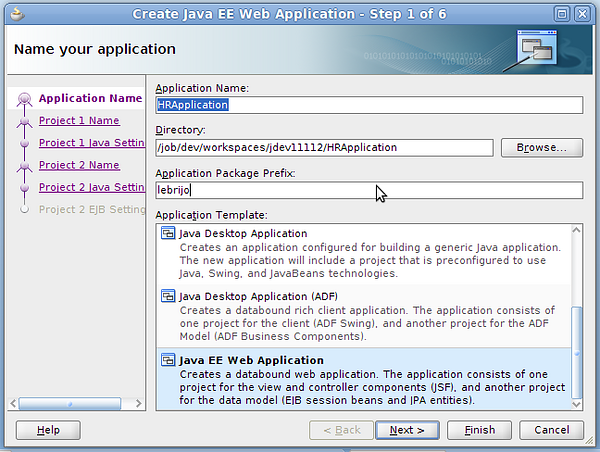
File > New > Java EE Web Appliation, con lo que creamos una nueva estructura de aplicación:
create_app.png184 KB
Llamamos a la aplicación HRApplication, y nos va a crear dos projectos dentro de ella:
ViewController: que contendrá la capa de vista de nuestra applicación, correspondiente con la tecnología ADF basada en el estandar JSF.
Model: contendrá los beans EJB y las entidades JPA
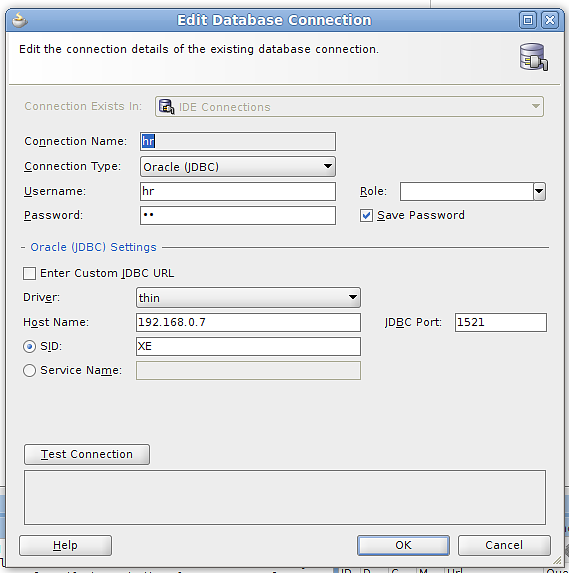
Para crear la conexión a la BBDD en la pestaña Database Navigator con botón derecho > New, introducimos los datos:
db-connection.png31.2 KB
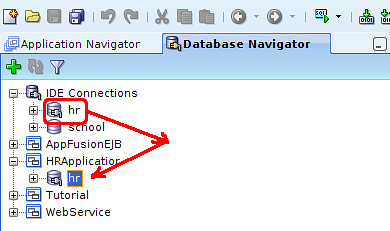
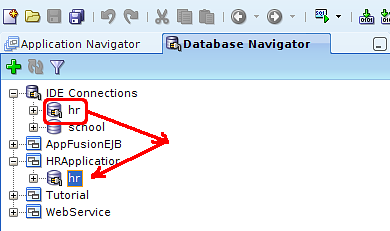
Y arrastramos la conexión a nuestra aplicación:
drag_drop_hr.png17.9 KB
Con esto tenemos la aplicación para empezar a modelarla y a construirla.
Aug 12, 10 by Juan Lebrijo about weblogic, JDeveloper, blog
Open JDeveloper with "Default role" option, to activare al environment features. We are interested in JEE and database development features.
File > New > Java EE Web Application, then we are creating the new application estructure:
create_app.png184 KB
Put the name "HRApplication", and it creates two projects on the app:
ViewController: contains the view of our application, which corresponds with ADF technology based on JSF standard.
Model: contains EJB session beand and JPA entities.
To create a database connection go to the "Database Navigator" tab, and with right buton> New, introduce the connection configuration:
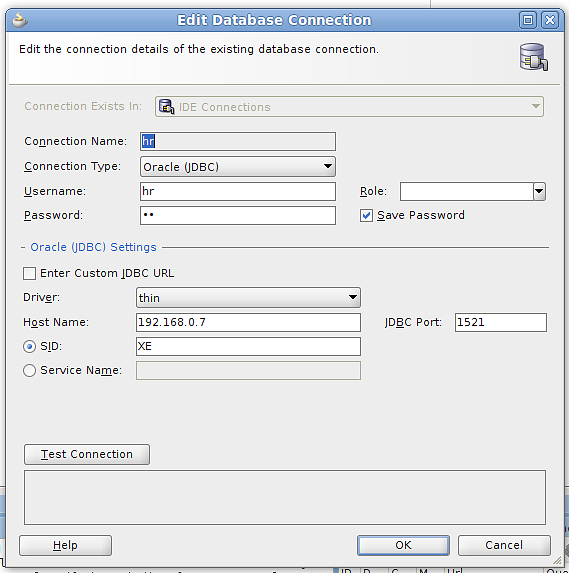
db-connection.png31.2 KB
Drag and drop the connection to our application:
drag_drop_hr.png17.9 KB
Then we are ready to start modeling and programming.