Some libraries (oracle-ADF, richfaces, icefaces) allow Rich Inernet Applications development.
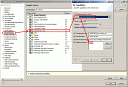
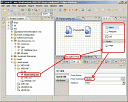
How described technical espec we will make the views with JSF 1.2, Oracle implementation. We can add this facet in the project properties:
1248.thumbnail.gif6.64 KB
Managed Bean
This object will map our JSPs and will store the server data in the session. Then I will put as view object:
package view;

public class HelloBean {
    private String nombre = null;

    public String getSaludo() {
        return "Hola, "+nombre;
    }

    public String getNombre() {
        return nombre;
    }

    public void setNombre(String nombre) {
        this.nombre = nombre;
    }
}
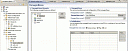
We must map this bean in faces-config.xml:
1223.thumbnail.gif4.23 KB
Creating JSPs
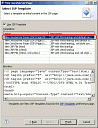
We will create a JSP/JSF page using "New JSF page (html)" template:
1222.thumbnail.gif7.76 KB
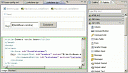
The palette helps us to create the JSPs:
1221.thumbnail.gif5.14 KB
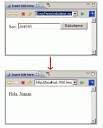
We will create a name request form, saludame.jsp:
<%@ page language="java" contentType="text/html; charset=ISO-8859-1" pageEncoding="ISO-8859-1"%>
<%@ taglib prefix="f"  uri="http://java.sun.com/jsf/core"%>
<%@ taglib prefix="h"  uri="http://java.sun.com/jsf/html"%>


Insert title here


    Soy:
The response, saludo.jsp:
<%@ page language="java" contentType="text/html; charset=ISO-8859-1" pageEncoding="ISO-8859-1"%>
<%@ taglib prefix="f"  uri="http://java.sun.com/jsf/core"%>
<%@ taglib prefix="h"  uri="http://java.sun.com/jsf/html"%>


Insert title here
Navigation rules
We will create the navigation rule in faces-config.xml:
Select Navigation Rules tab in the file
The palete helps us to create the navigation diagram
In the link write the literal that fulfil the rule, in the action of saludame.jsp.