The target for this post is to embed at our MediaWiki an editor as Wordpress wysiwyg editor. For editing visual and no-problem with the back language.
With Wiki applications this language is not HTML, because of the complexity or the reference systems used. They use a tagged language, Wikitext, which we could do not need or do not our users learn.
In my opinion the FCKEditor is the best choice. We based on the following guide: FCKEditor Integration Guide.
Download the package: mediawiki_fckeditor_ext_N.tar.gz. Unzip it and copy to the extensions directory of your MediaWiki Installation folder:
Finally notify to MediaWiki for loading this extension at the begining, at file LocalSettings.php:
# EXTENSIONES: Aquí incluimos las extensiones incrustadas en MediaWiki:
require_once $IP . "/extensions/FCKeditor/FCKeditor.php";
Then our edito is embebed. Refresh the cache in your browser to ensure that there is nothing cached.
If you want to change the language of the interface editor, I could change modifying the following lines in the cofiguration file (fckeditor_config.js):
El objetivo de este apunte es incrustar en nuestro MediaWiki un editor parecido al que tenemos en WordPress. Editar de forma visual y sin preocuparnos del lenguaje de detrás.
En el caso de las Wikis este lenguaje no es ni siquiera HTML por la complejidad de los sistemas de referencia de los que hacen uso. Utilizan un lenguaje de etiquetas, el Wikitext, que puede que no queramos ó necesitemos que nuestros usuarios aprendan.
La mejor opción parece ser FCKEditor. Instalamos el plugin con la guia: FCKEditor Integration Guide.
Descargamos el paquete: mediawiki_fckeditor_ext_N.tar.gz. Lo descomprimimos y copiamos en el directorio de extensiones:
Finalmente apercibimos a MediaWiki que cargue esta extensión al inicio, en el LocalSettings.php:
# EXTENSIONES: Aquí incluimos las extensiones incrustadas en MediaWiki:
require_once $IP . "/extensions/FCKeditor/FCKeditor.php";
Con esto ya tendríamos nuestro editor avanzado incrustado. Refrescad bien la pantalla de vuestro navegador para aseguraros que no tiene cacheado el anterior editor.
Si quereis cambiar el idioma además, yo lo conseguí modificando las siguientes líneas del fichero de configuración (fckeditor_config.js) de la extensión:
Mar 26, 08 by Juan Lebrijo about NetBeans, Database, blog
En esta entrada veremos como podemos conectar Netbeans a una Base de Datos, en mi caso trabajo con Oracle, por tanto la tomaremos de ejemplo.
Utilizaremos el estándar JDBC, basado en java para conexiones remotas de BBDD.
Para empezar le echaremos un vistazo a un par de enlaces:
Este es una entrada de la wiki de Netbeans donde tenemos enlaces a todos los drivers SGBDs que soporta. Por tanto si estás buscando algo para PosgreSQL, MySQL, M$, DB2,.. puedes intentarlo en este enlace.
Aquí tenemos el driver JDBC para Oracle concretamente. En principio debería valer para acualquier versión de Oracle a partir de la 9i.
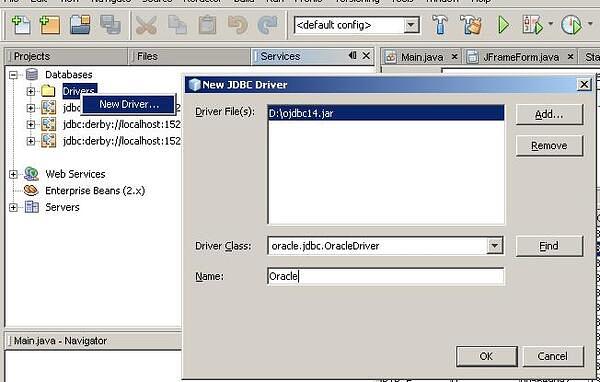
Del segundo enlace descargué el driver contenido en el fichero ojdbc14.jar. Este será el que hay qhe instalar en la pestaña Services --> Botón derecho sobre Drivers --> New Driver ...NB_SGBD_01.JPG33.9 KB
Buscamos el driver que hemos descargado en nuestro sistema, y lo instalamos.
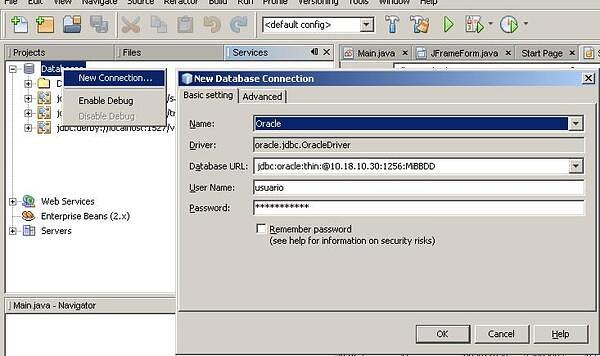
Para crear la nueva conexión lo hacemos en la pestaña Services --> Botón derecho sobre DataBases --> New Connection ...NB_SGBD_02.JPG35.5 KB
Tenemos que construir nuestra URL de conexión con el siguiente modelo:
jdbc:oracle:thin:@{HOST}:{PORT}:{SID}
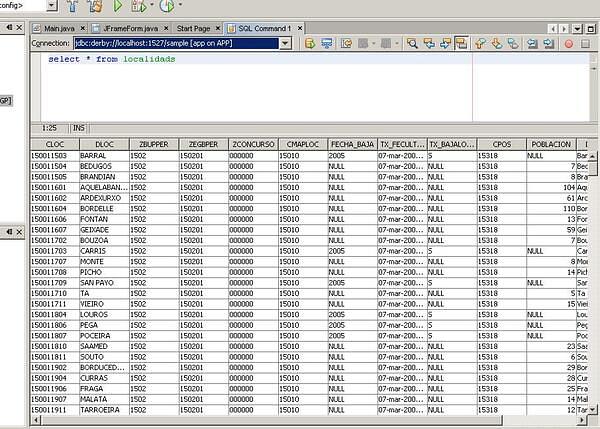
En la ventana principal se pueden sacar conultas directas para probar:
NB_SGBD_03.JPG63.8 KB
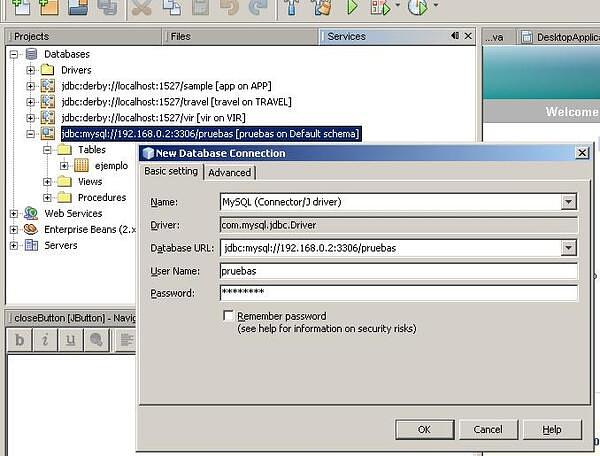
Naturalmente, con un driver JDBC preinstalado en Netbeans como el de MySQL sería más inmediato crear una conexión. Podeis tener en cuenta la configuración de la imagen:
NB_SGBD_04.JPG44.6 KB