Aug 22, 10 by Juan Lebrijo about Web, Java, JDeveloper, blog
Usually, in all our web projects, we want all the pages have a coherent style in ehole site, to improve the usuability. The usual strategy is fix the header (with the login for example), a menu in the top or both sides, and a footer.
And all this parts are included in all our pages with no repeat the code.
Every change in the template will show in whole site.
And, if is possible, our WYSIWYG editor shows me the design (it is not possible with Eclipse for the moment).
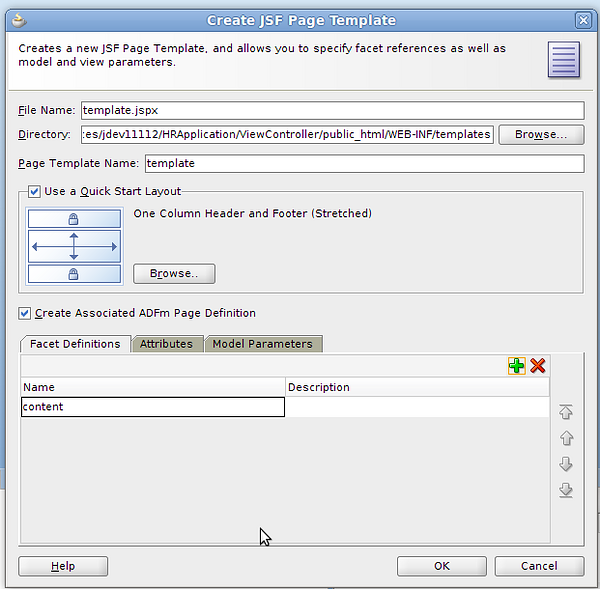
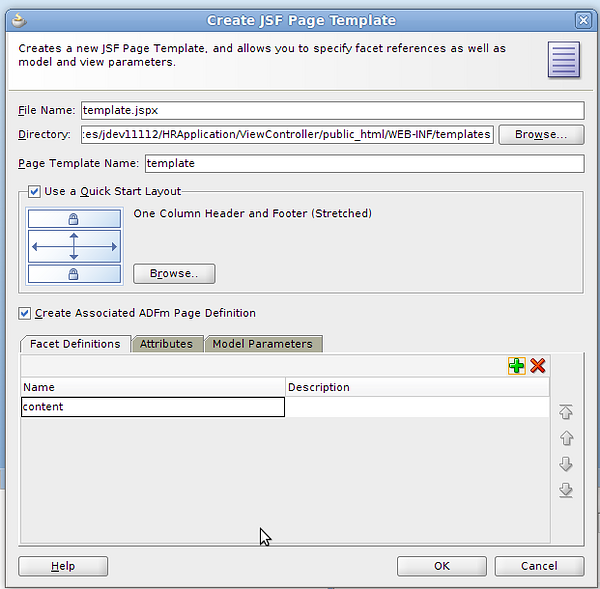
Based on last JDeveloper articles, in the project ViewController > New > Web Tier > JSF Page Template, create the template /WEB-INF/templates/template.jspx:
create_template.png108 KB
Choose a fixed header and footer template.
Select "Create ADFm Page Definition" to define an object which manage the template.
Add a facet called "content" where we will draw the pages developed.
Add "pageTitle" attribute to show the title of the developed page in the header.
It generates a file called trinidad-config.xml where we can change the skin configurations, from fusion to blafplus-rich for example.
With ADF we can create our own skins, it is not easy and we recommend take the web designer skills before. Nevertheless it keeps some default skins that can be sufficient:
simple: minimal and light formatting
blafplus-medium: very modest design.
blafplus-rich: extends blafplus-medium, it gives cooler like with things like rounded corners.
fusion: is the default one, rich and modern.
fusion-projector: to show in old projectors.
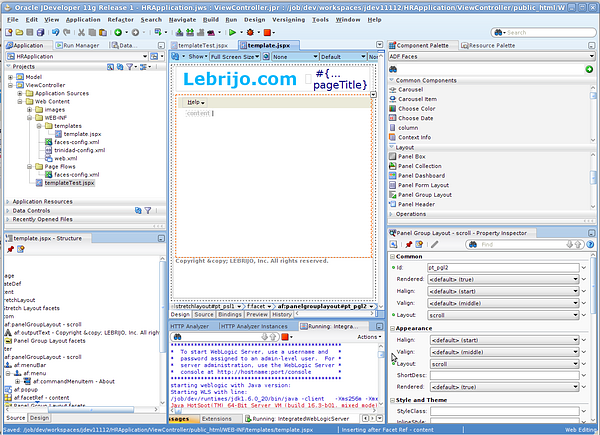
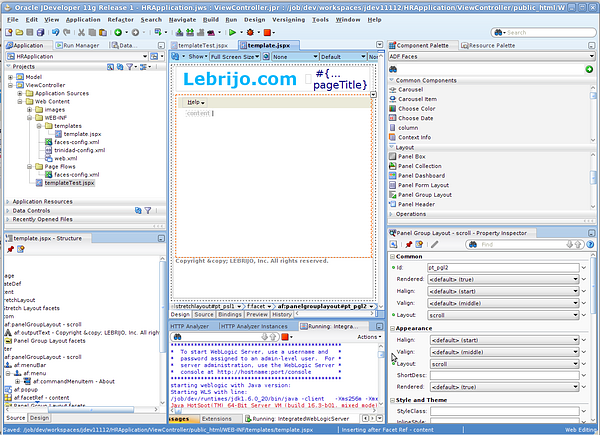
Placing logos and titles in the header, and copyright at the bottom is very intuitive thanks to component palette. To place the menu too: first add a Panel Menu Bar, then a menu, and at last the menu items.
design_template.png214 KB
We will create the Help > About menu action, with the component Popup which can be associated to a menu item. Inside we will include a Dialog component, which creates a little ok/cancel window, which will be filled with an Output Text and a Rich Text Editor.
Now in the About menuItem, from the Operations palette we will add a "Show Popup Behaviour" where bind with the popup identifier to open the popup.
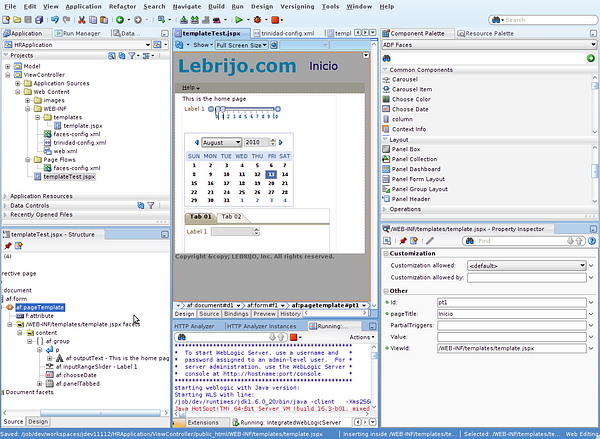
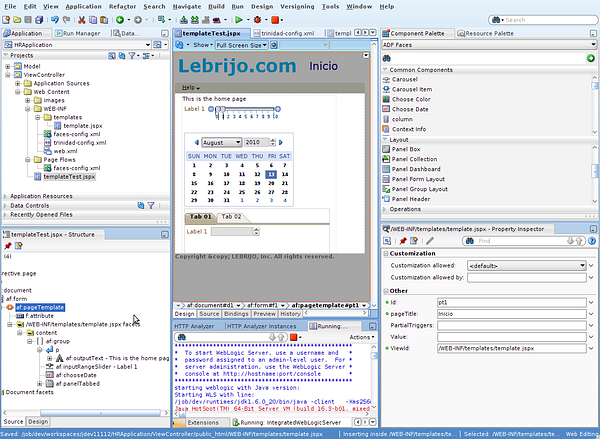
To test the template we will create a New > Web Tier >JSF Page (templateTest.jspx) choosing the created template.
design_page.png208 KB
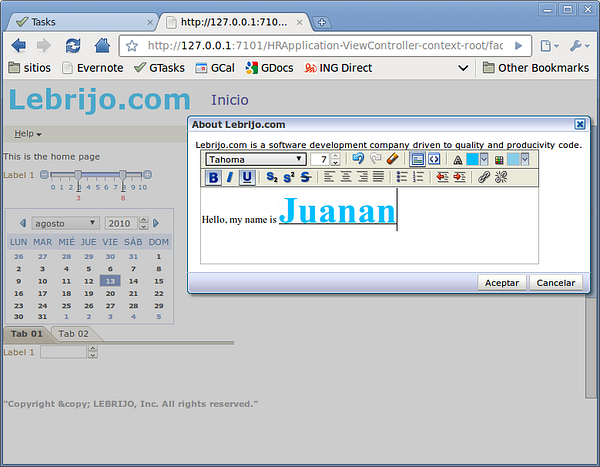
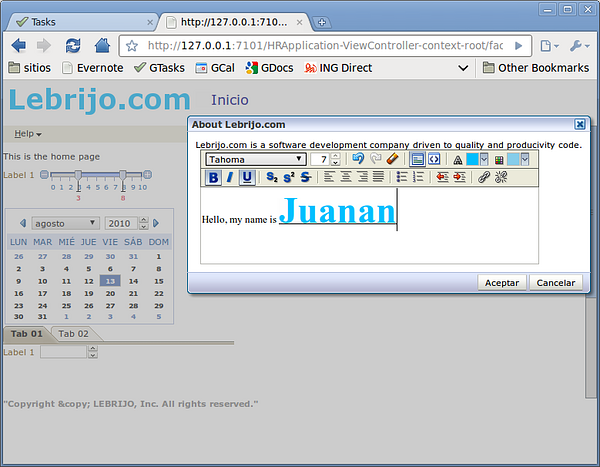
And we will test with right button > Run, Weblogic starts and call to the browser showing the result:
testing_template.png120 KB
Aug 22, 10 by Juan Lebrijo about Web, Java, JDeveloper, blog
Normalmente en todos los proyectos web, queremos que todas las páginas tengan una apariencia coherente en todo nuestro sitio, para mejorar la usabilidad. Lo más habitual en web es poner como parte fija la cabecera (con el login por ejemplo), un menú en la parte superior o lateral, y un pié:
Y que estas partes (que forman la plantilla) se incluyan en todas las páginas que desarrollemos sin necesidad de volver a repetir todo.
Que cualquier modificación sobre la plantilla se refleje automaticamente en todo nuestro sitio, sin tocar el resto.
Y, si es posible, en mi editor WYSIWYG se vea todo (esto en Eclipse no es posible de momento).
En el proyecto ViewController New > Web Tier > JSF Page Template, creamos /WEB-INF/templates/template.jspx:
create_template.png108 KB
Escogeremos una plantilla de cabecera y pié fijas
Selecionaremos "Create ADFm Page Definition" para definir un objeto que maneje la plantilla después.
Añadimos un facet llamado content donde introduciremos las páginas que desarrollemos después.
Añadimos un atributo pageTitle para pasarle desde nuestras páginas el título de las mismas.
Nos genera un fichero llamado trinidad-config.xml donde podremos cambiar la configuación del skin, de fusion a blafplus-rich por ejemplo.
Con ADF podemos crear nuestras propias skins (apariencia an español), no es inmediato y siempre conviene contar con las habilidades de un diseñador web. No obstante trae una serie de skins por defecto que pueden ser suficientes para ti:
simple: formato mínimo y muy ligero
blafplus-medium: modestamente cargado.
blafplus-rich: extiende el blafplus-medium, le da mejor apariencia con cosas como esquinas redondeadas.
fusion: este es el actual por defecto, rico y moderno.
fusion-projector: para mostrar demos a través de viejos proyectores.
Poner logos y títulos en la cabecera, y el copyright en el pié es muy intuitivo gracias a la paleta de componentes. Para poner el menú igual: primero añadir un Panel Menu Bar, luego un menu, y por ultimo los items de menú.
design_template.png214 KB
Vamos a crear un menú Help > About con la ayuda del componente PopUp que se puede asociar a un item de menu. Dentro de él incluimos el componente Dialog, que nos crea una pequeña ventana ok/cancel, que debemos rellenar con un OutputText.
Ahora en el menuItem About, desde la paleta Operations le añadimos un "Show Popup Behaviour" al que informamos con el identificador del popup que queremos abrir aboutPopup.
Para probar la plantilla tenemos que crear una New > Web Tier >JSF Page (templateTest.jspx) eligiendo como plantilla la que hemos creado.
design_page.png208 KB
Y lo probamos con botón derecho > Run, arrancará Weblogic e iniciara tu navegador para ver el resultado:
testing_template.png120 KB
Data Controls are objects which acts as an intermediate layer between the view layer and business layer on JDeveloper Architecture. These takes a consistent way to manipulate data collection to show at the view in programming time. They maps the model, and business services, binding, and managing the data transactionality, keeping the view coherent.
This part which empower the view programming time, I do not like because goes out from the estandards JSF/EJB ... and generate some automatic files which we cannot find in other architectures.
We will base in other posts where we have construct until an example application business layer. Right button over every service classes > Create Data Control.
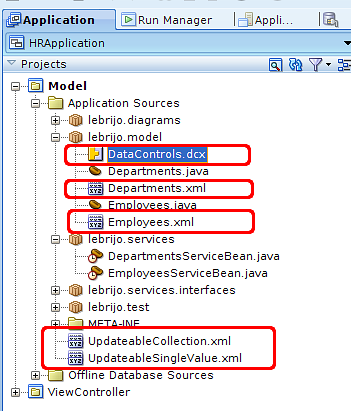
It creates the following files in your Model project:
files_created.png26.3 KB
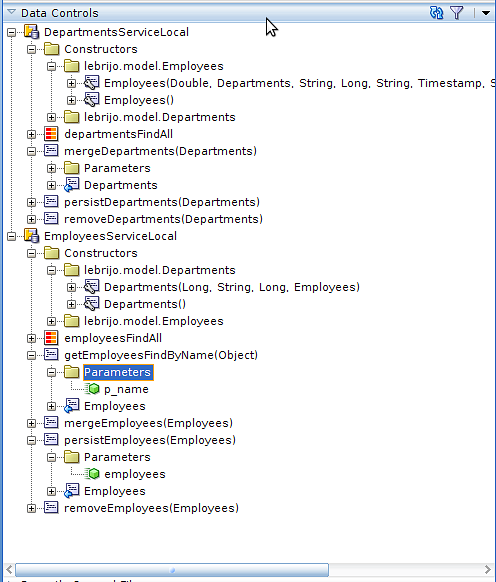
All are XML files which maps the methods and beans evolved on the services that you want to construct in the view. It makes that the IDE fix the elements in the business logic, and the developer dragging and dropping from "Data Controls" window creates the view components over the layout:
data_control_window.png30.1 KBThis is an automatic action that must be repeated every times we change the model, or we add business methods.